How to Set Up the Bill Control Policy in Odoo 18 Purchase?
Managing vendor bills and purchase orders effectively is critical for any business, and Odoo 18 makes this process smooth with its robust Bill Control Policy in Odoo 18 Purchase. Whether you need to set up invoicing based on received goods or ordered quantities, understanding the configuration process can save time and reduce errors.
This guide will walk you through every step of the process while ensuring compliance with your purchasing needs.
The Secret Formula of Odoo 18 Purchase Billing!
What if I told you there’s a hidden superpower in Odoo 18 that could change your vendor billing from a chaotic mess into a finely tuned symphony? Sounds like magic, right? Buckle up because we’ll reveal the Bill Control Policy in Odoo 18 Purchase. This feature doesn’t just simplify your invoicing process; it revolutionizes how you think about vendor bill management.
Just imagine you’ve placed a massive purchase order, and instead of drowning in mismatched invoices or pulling your hair out of overpayment discrepancies, Odoo 18 steps in like a billing ninja, ensuring everything aligns perfectly. But here’s the kicker: You can decide when and how those bills will be created. Ordered or received billing? The choice is yours!
Are you curious how the Odoo 18 bill control policy can work magic for your business? What’s the deal with Odoo 18 purchase invoicing settings that make invoicing look like child’s play? Stick around because this guide is packed with all the juicy details you didn’t even know you needed. Spoiler alert: By the end, you’ll be ready to conquer Odoo 18 purchase configuration like a pro.
So, whether you’re new to Odoo 18 vendor bill management or simply tired of playing guessing games with your purchase orders, this article is your golden ticket to clarity, efficiency, and a little peace of mind. Ready to dive into the world of Odoo 18 ordered vs. received billing? Let’s get started! The secrets are just a scroll away.
Why You Need the Bill Control Policy in Odoo 18 Purchase
Accurate and timely billing is crucial in the fast-paced world of business. Odoo 18 simplifies this process with its dynamic Bill Control Policy in Odoo 18 Purchase. This policy allows companies to dictate when vendor bills are generated based on the quantities ordered or received.
With the Odoo 18 bill control policy, organizations gain better control over their financial workflows, ensuring vendor bills align with actual procurement activities. It integrates flawlessly with the Odoo 18 purchase invoicing settings, making the billing process efficient, accurate, and automated.
The Odoo 18 purchase configuration enables businesses to choose between ordered vs. received billing, ensuring flexibility to meet different operational needs. By understanding the nuances of Odoo 18 vendor bill management, companies can reduce errors, save time, and improve supplier relationships.
What is the Bill Control Policy in Odoo 18?
The Bill Control Policy in Odoo 18 Purchase is a configurable setting that determines how and when vendor bills are created for purchases. It offers two primary options:
Based on Ordered Quantities
Vendor bills are generated based on the quantities specified in the purchase order, irrespective of whether the goods have been received.
Based on Received Quantities
Vendor bills are created only for the quantities of items that have been physically received.
This policy directly influences how companies handle Odoo 18 purchase order billing, ensuring invoicing aligns with operational realities.
Key Benefits of the Odoo 18 Bill Control Policy
Flexibility in Billing
The ability to choose between ordered vs. received billing allows businesses to adapt their billing practices to their procurement strategies.
Enhanced Vendor Bill Management
With updated Odoo 18 vendor bill management, businesses can efficiently track and process vendor invoices, minimizing disputes and delays.
Improved Financial Accuracy
The Odoo 18 purchase invoicing settings link billing to actual transactions, ensuring that your financial records reflect reality and reducing the risk of overpayments or underpayments.
All-in-one Integration
The Odoo 18 purchase configuration integrates with modules like Inventory and Accounting, creating a cohesive workflow from purchase order to payment.
Reduced Operational Errors
Clear and consistent billing policies help eliminate errors in Odoo 18 purchase order billing, fostering better supplier relationships.
Step-by-Step Guide to Setting Up the Bill Control Policy in Odoo 18 Purchase
Ensure the Purchase module is installed and active before setting up the Odoo 18 bill control policy.
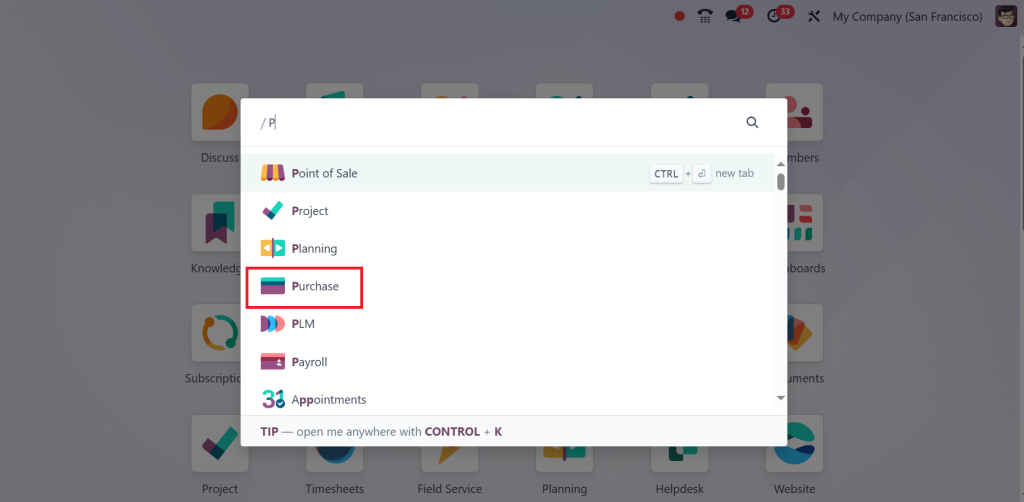
Go to the Purchase module from the main dashboard.
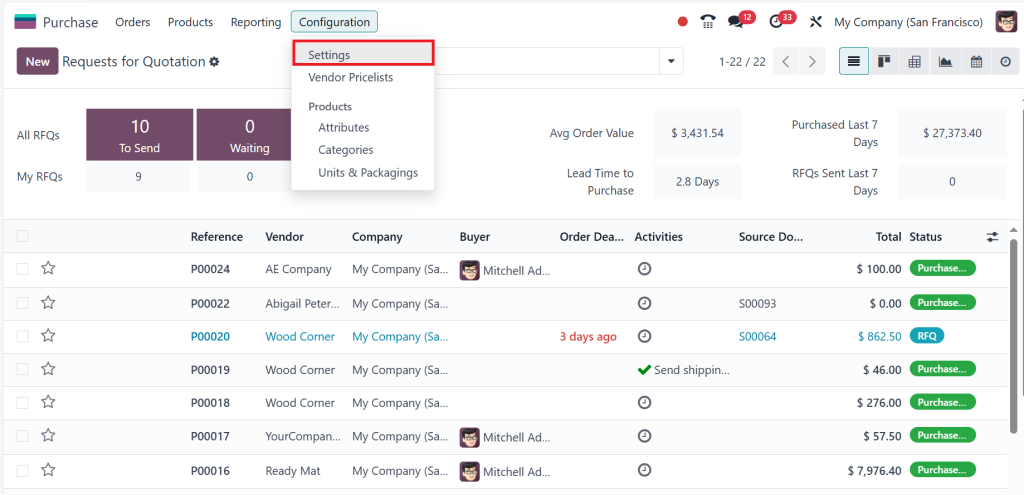
Click on Configuration in the menu and select Settings.
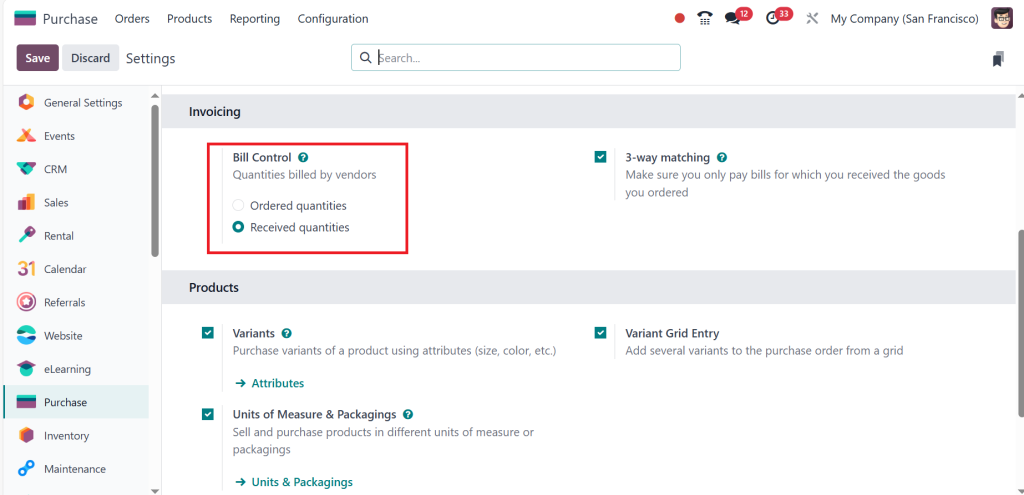
Locate the Bill Control Policy section under the Invoicing tab.
Select one of the following options:
Based on Ordered Quantities: Bills are generated once the purchase order is confirmed.
Based on Received Quantities: Bills are generated only after receiving goods.
Click Save to apply the changes.
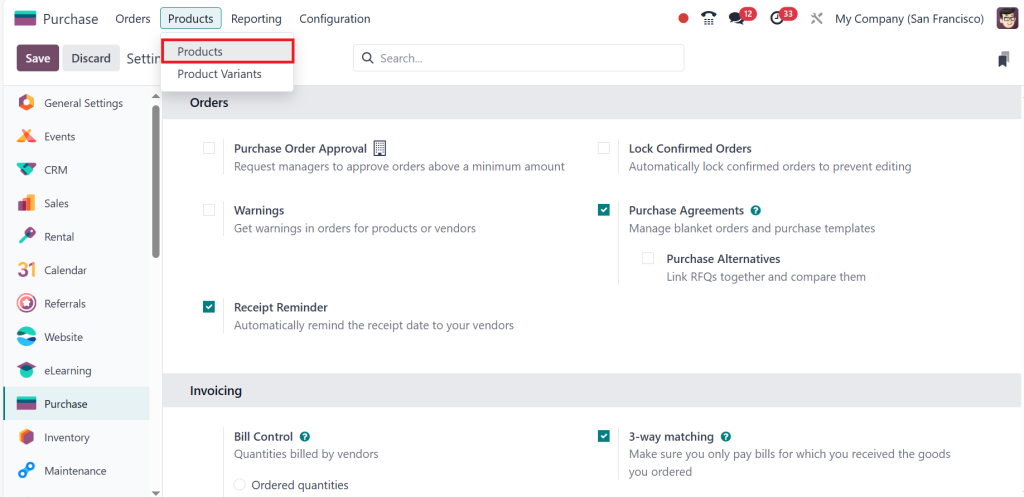
Let me show you how this works. To do so, go to the Products Menu and click Products.
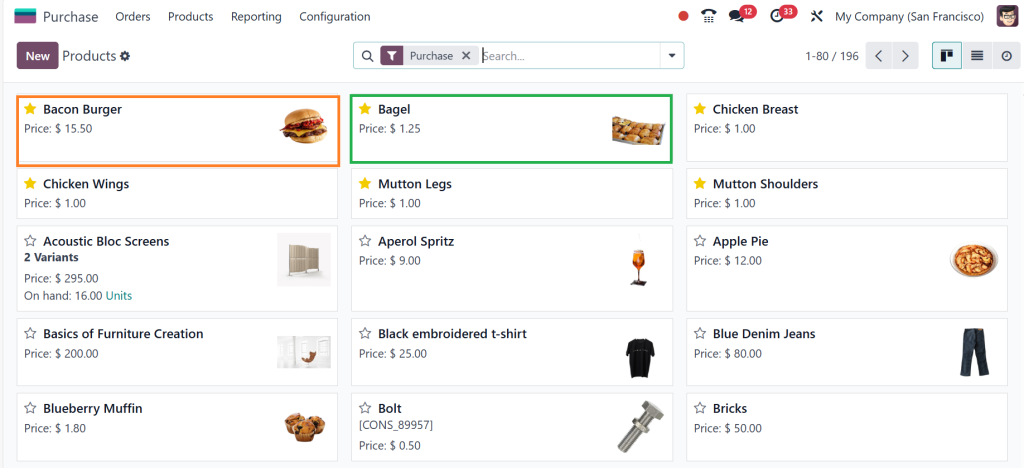
So, I am choosing two products: Bacon Burger & Bagel.
Based on Received Quantities
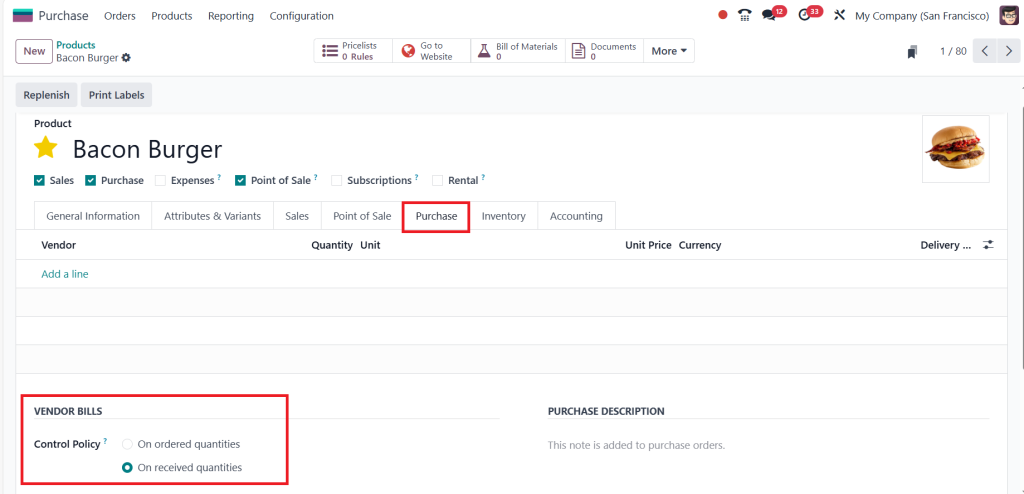
First, click on Bacon Burger and go to the Purchase Tab. Here, you have vendor bills, which are on received quantity. So, we know Bacon Burger is for the received quantity.
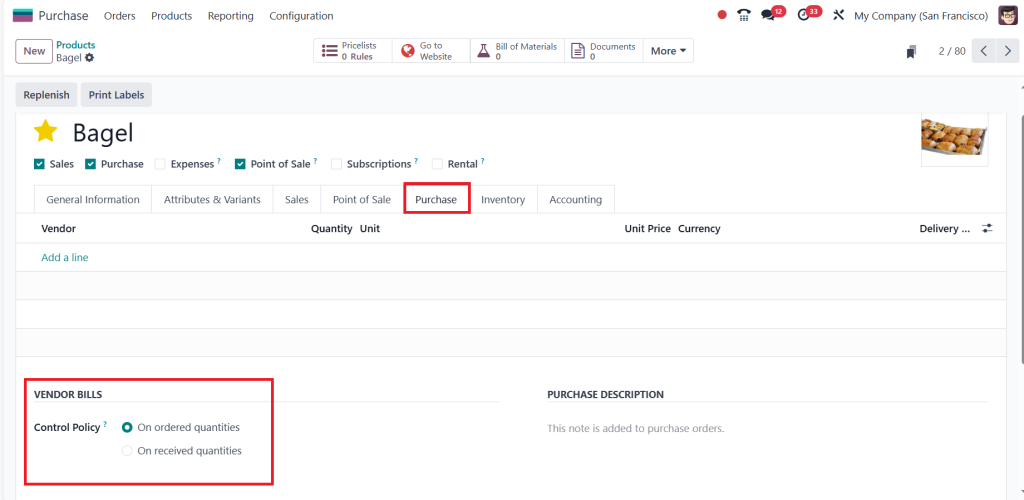
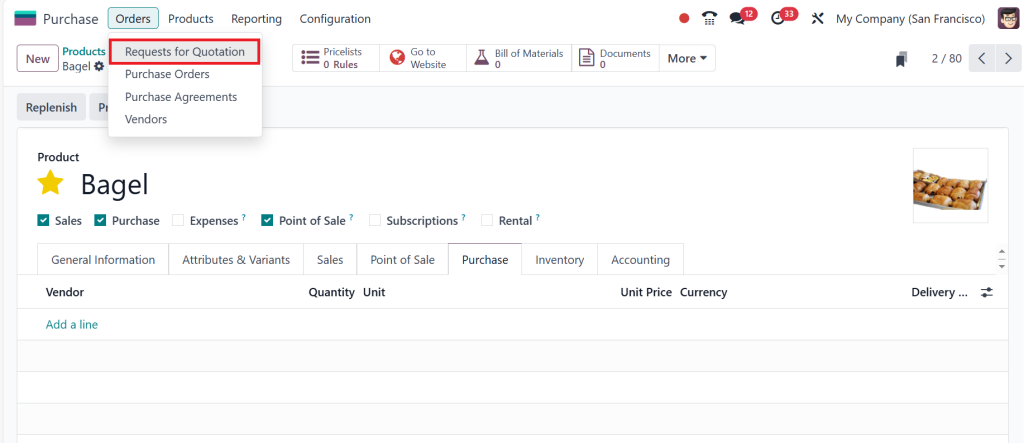
Next, open the second product, which is the Bagel. Then go to the Purchase Tab to choose On Ordered Quantities. So, we know the Bagel is for the ordered quantity.
We have given two products: Bacon Burger, which has the control policy received quantities, and Bagel, which has the control policy ordered quantities. Now, go to the Orders menu and select Requests for Quotation.
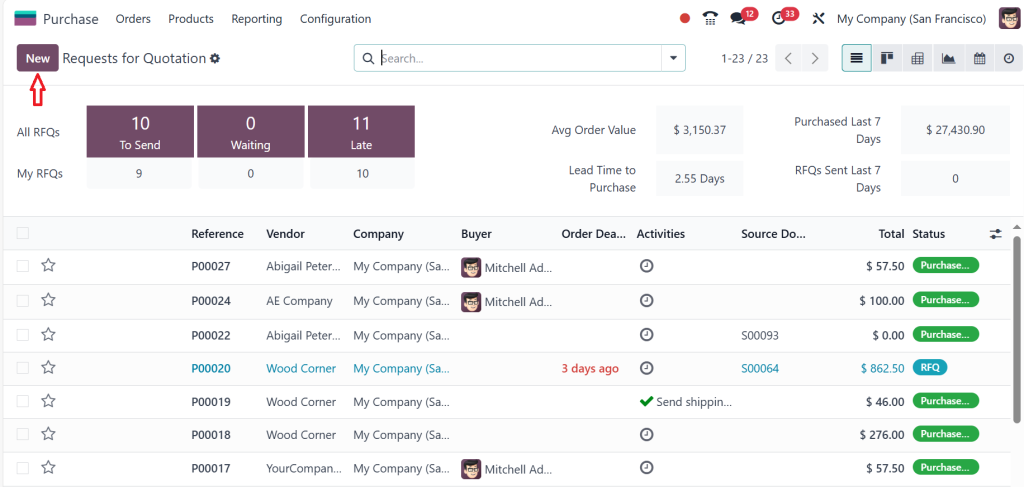
Click on New.
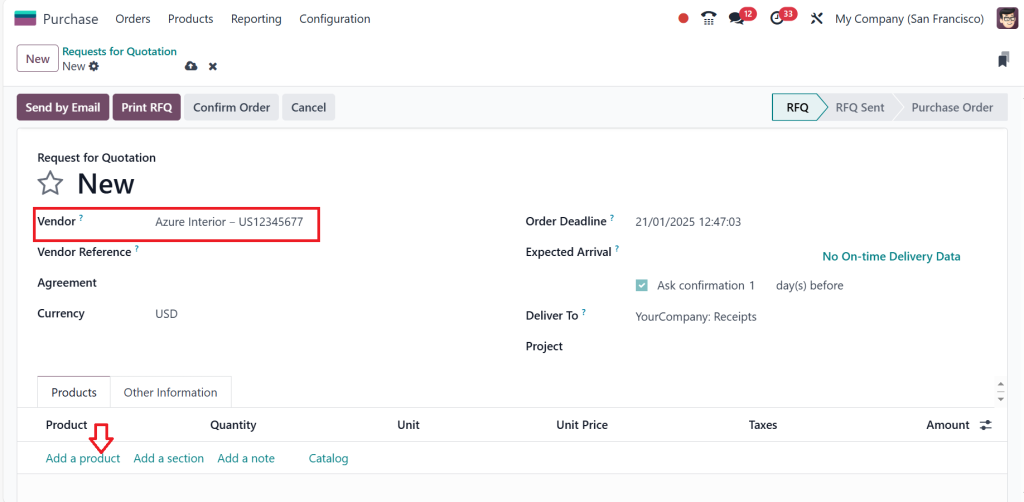
Select the Vendor and click on Add a Product.
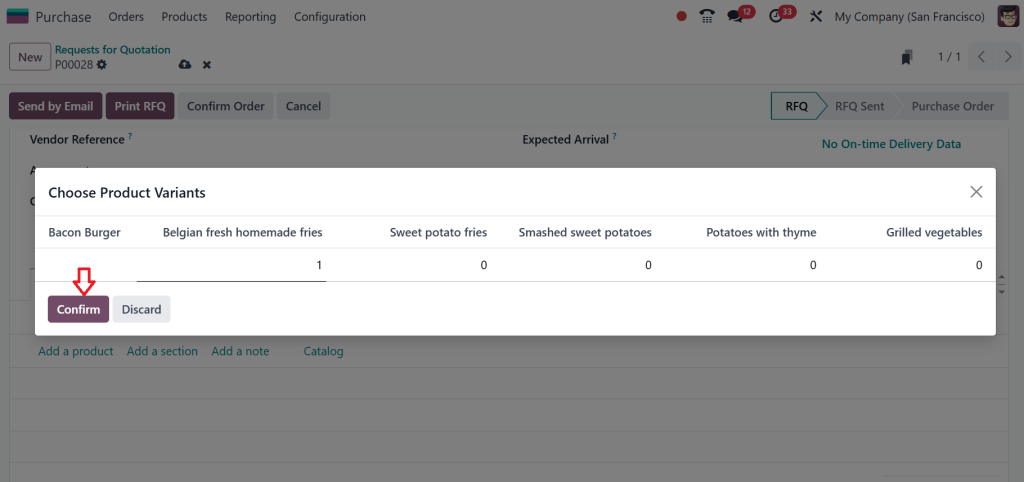
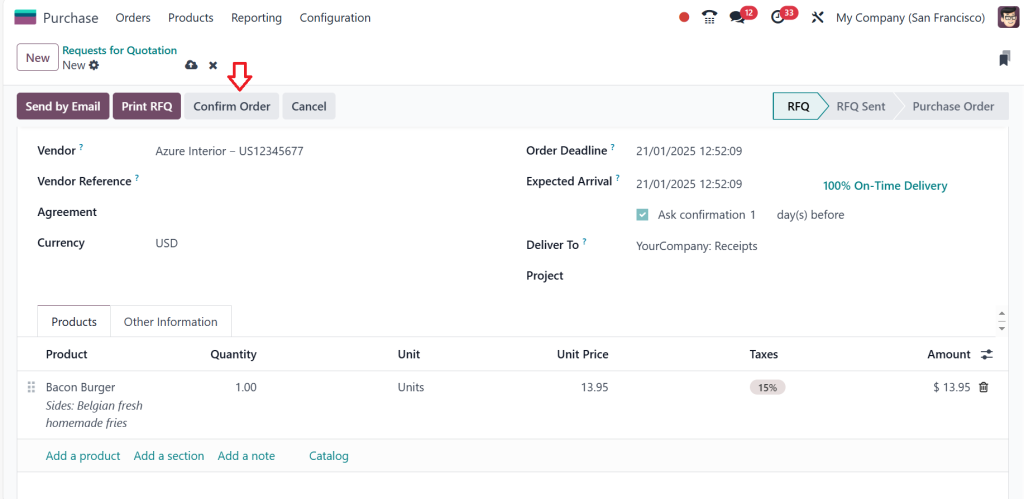
First, I am going to check Bacon Burger, so select Bacon Burger as a product and click on Confirm.
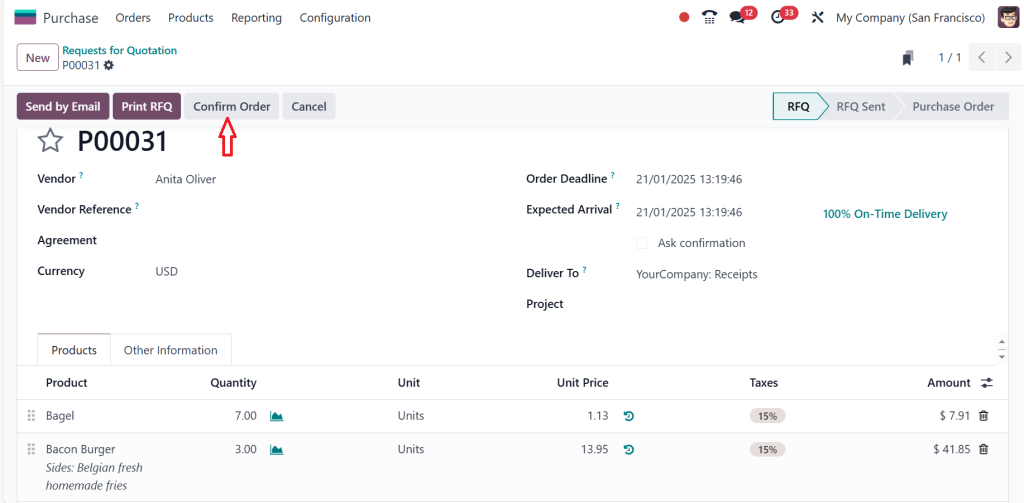
Confirm the Order.
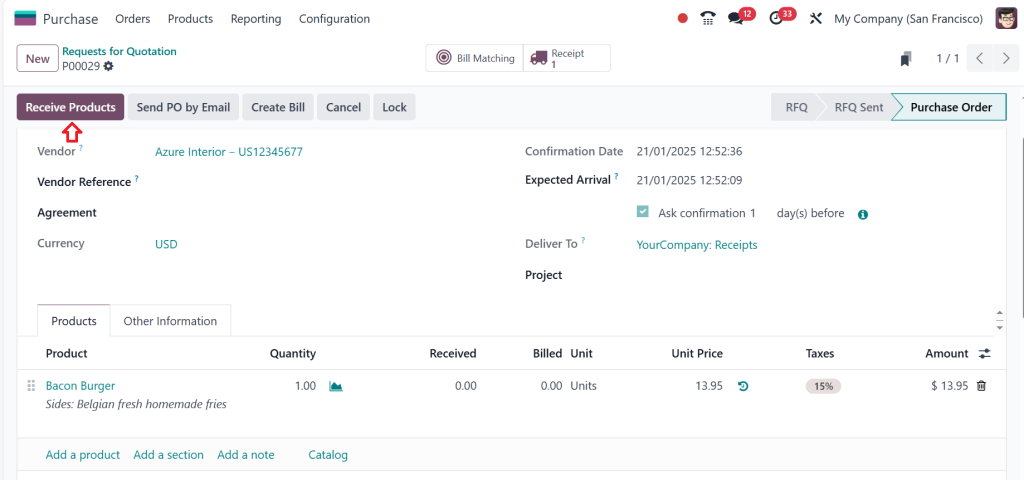
As you can see in the screenshot below, the Create Bill button is not active yet. You can only create the bill after receiving the product. Now, click on the Receive Products button.
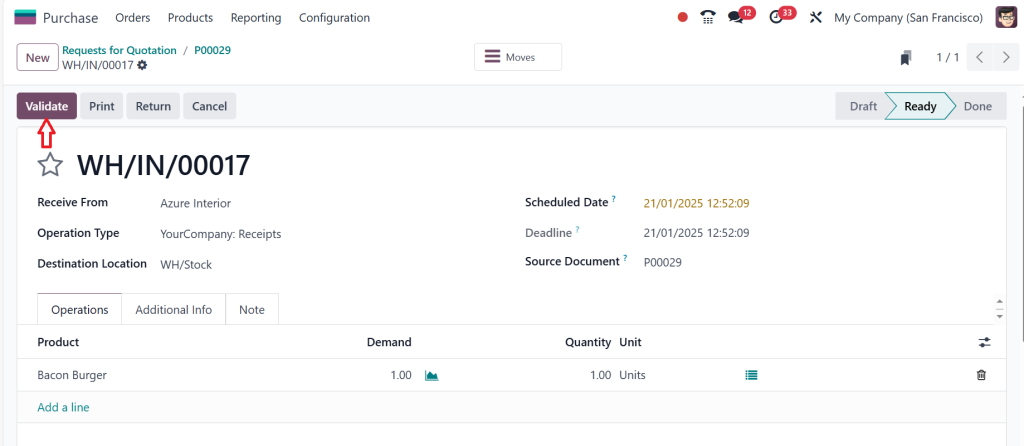
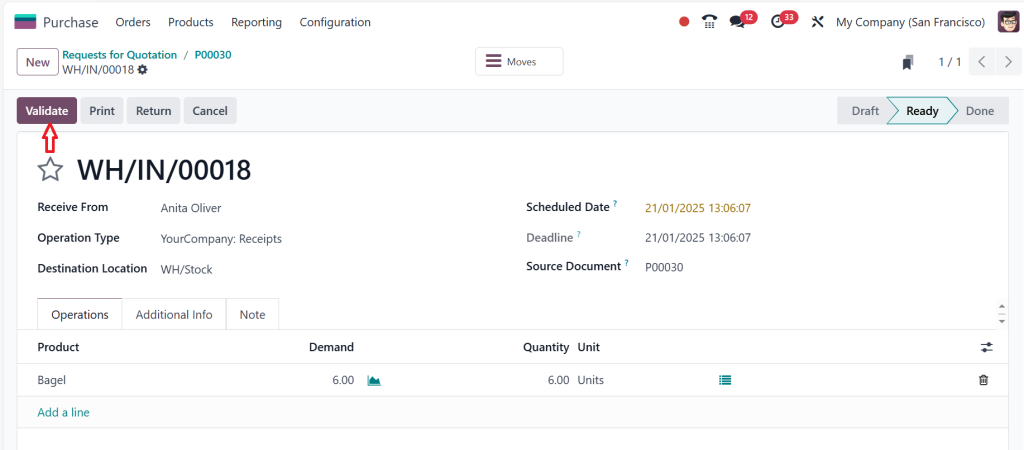
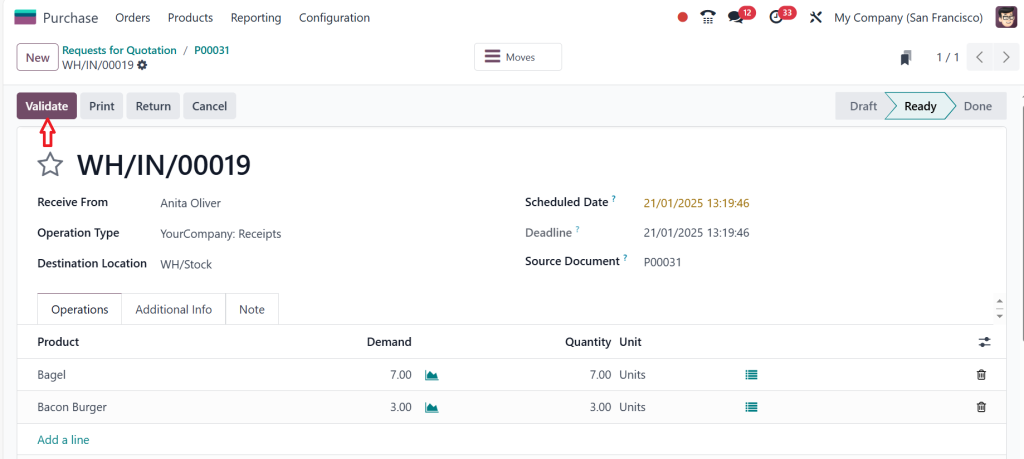
Click on Validate.
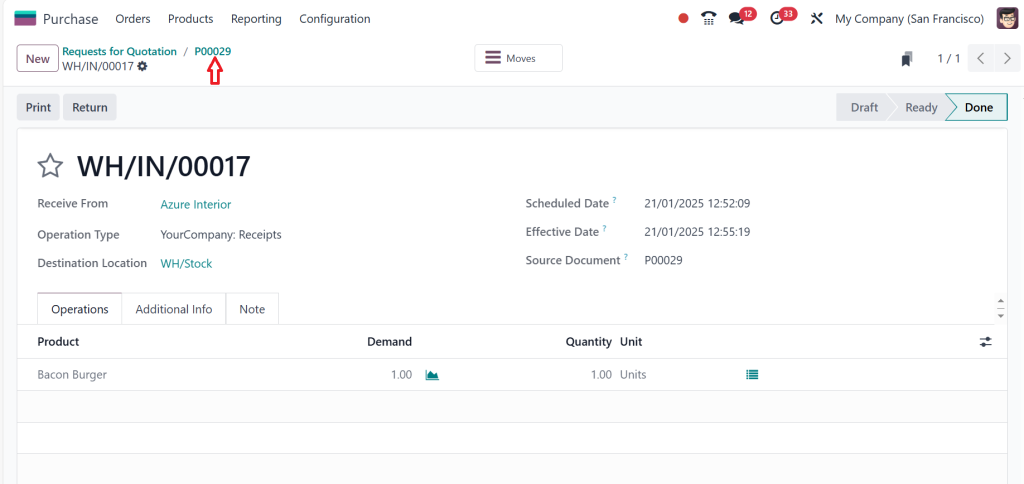
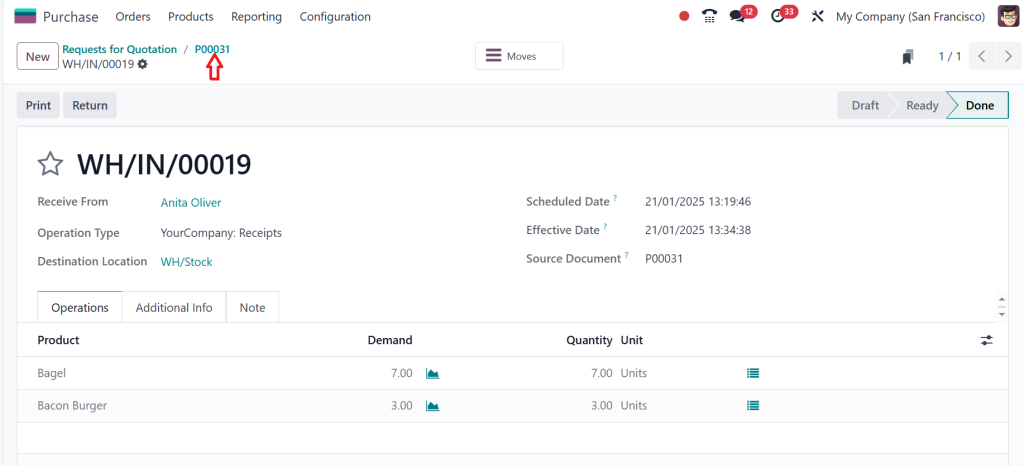
Go back to the Purchase order.
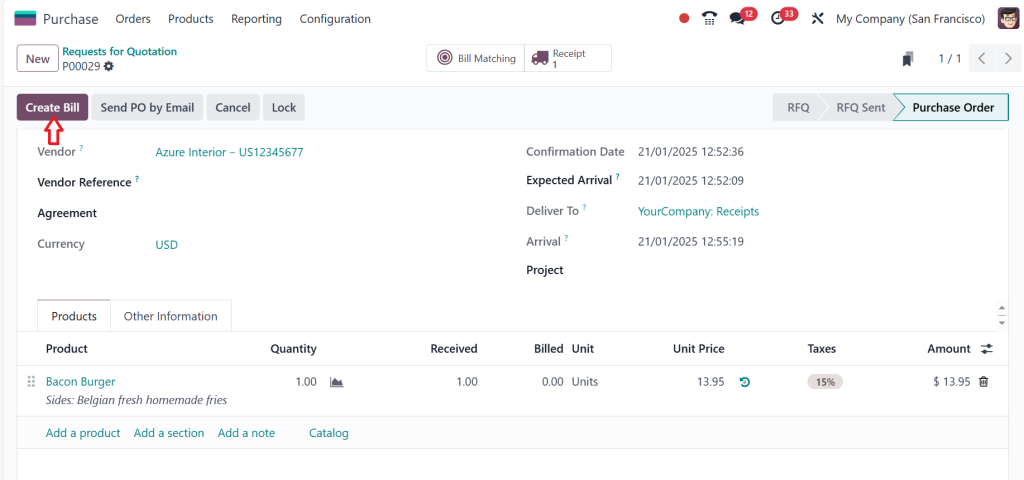
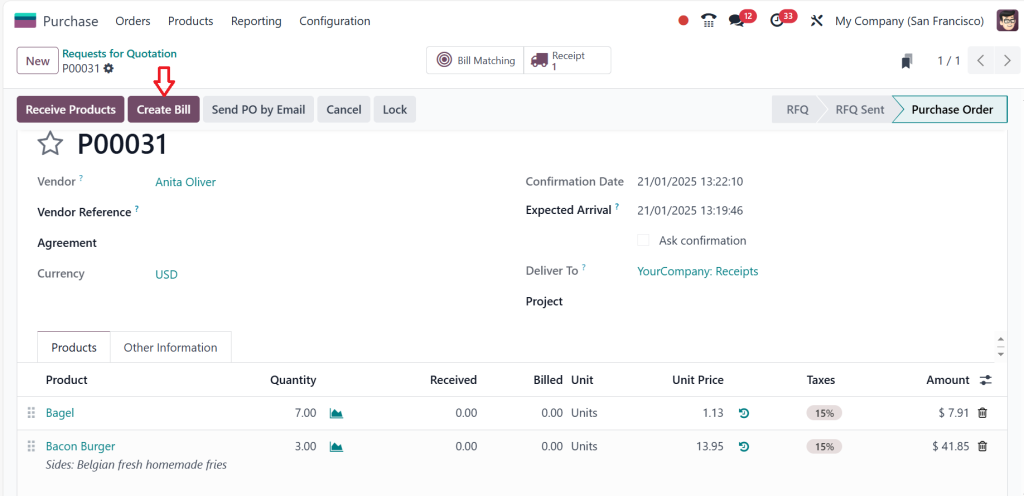
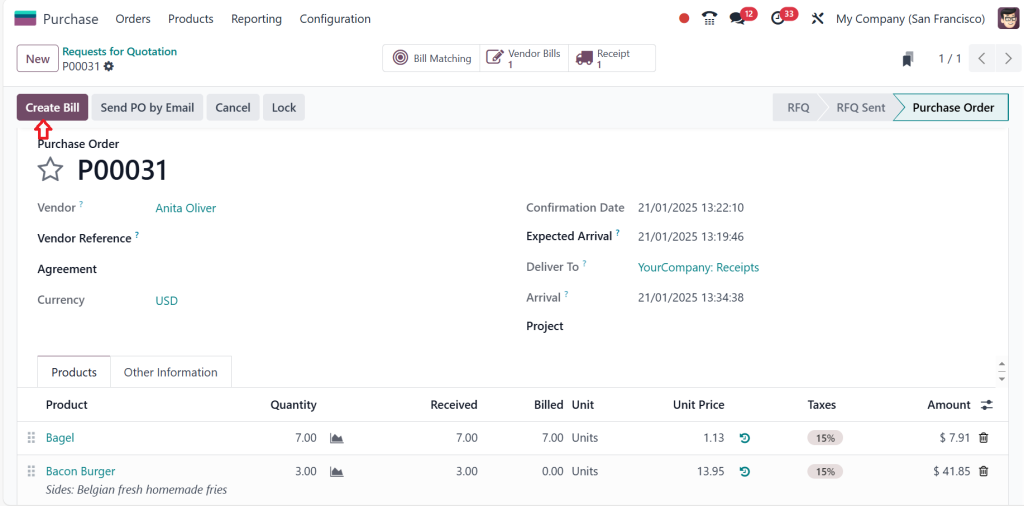
Then you can create the bill by clicking on Create Bill.
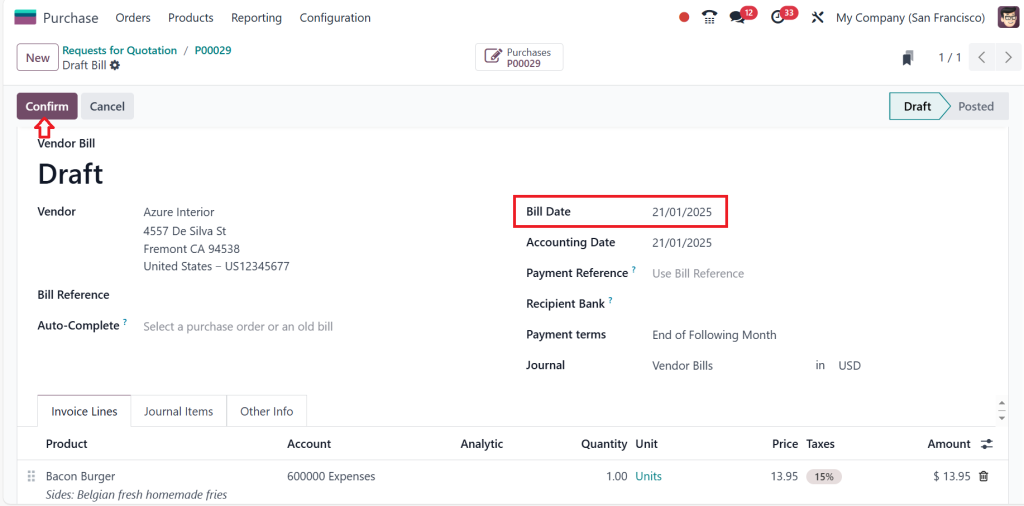
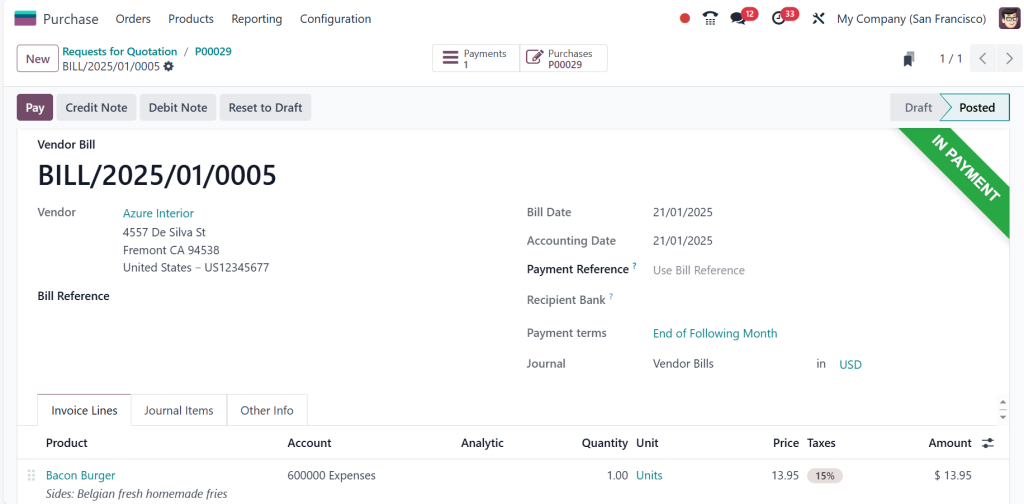
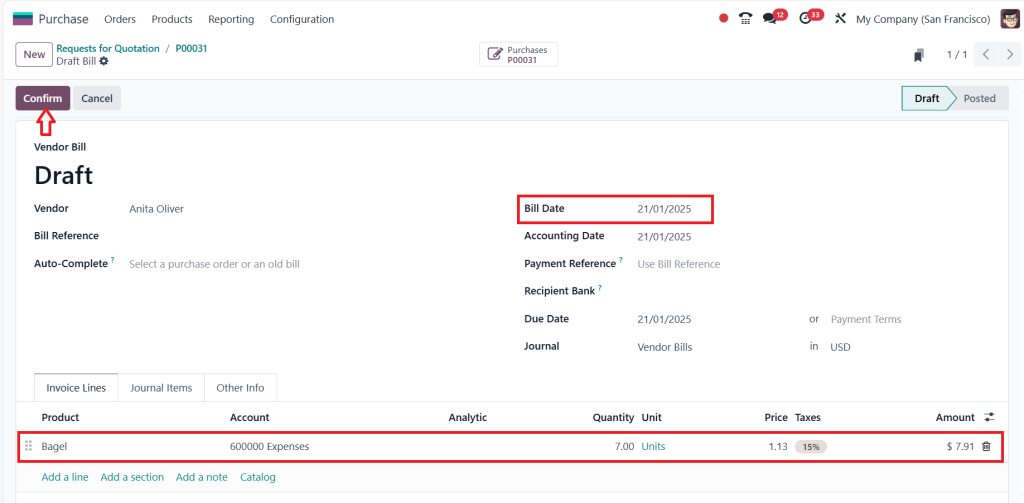
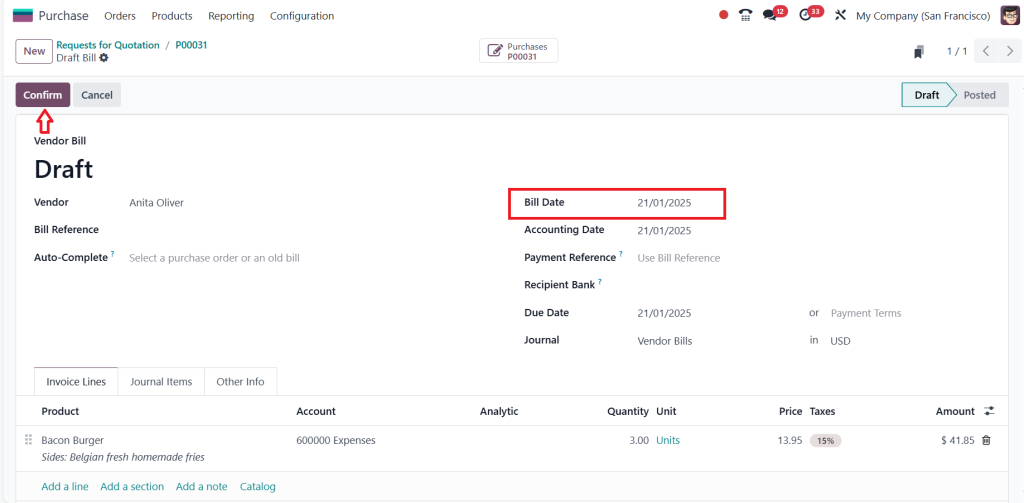
Mention the bill date and click on Confirm.
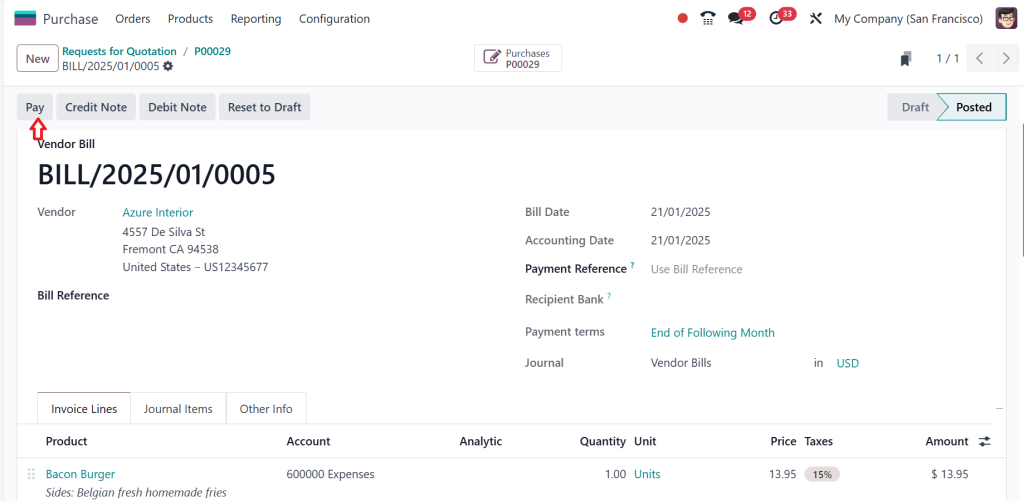
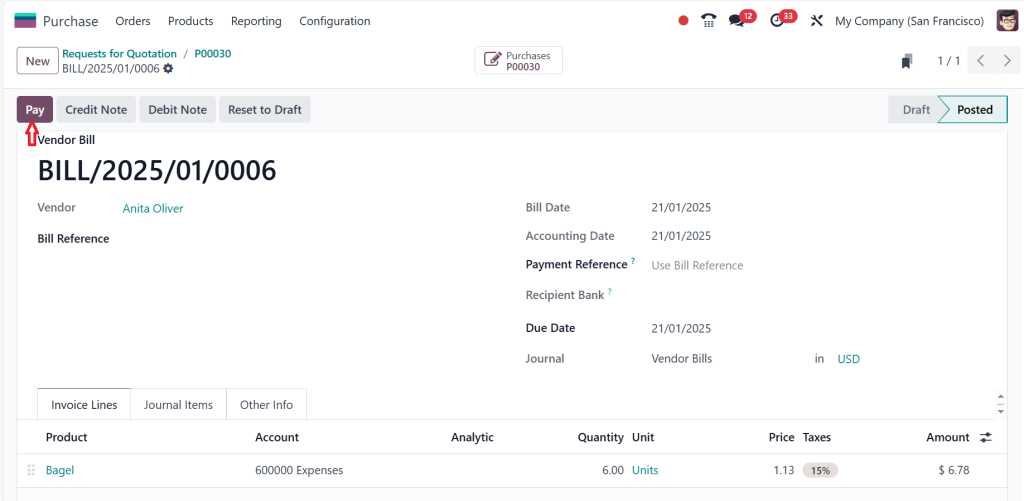
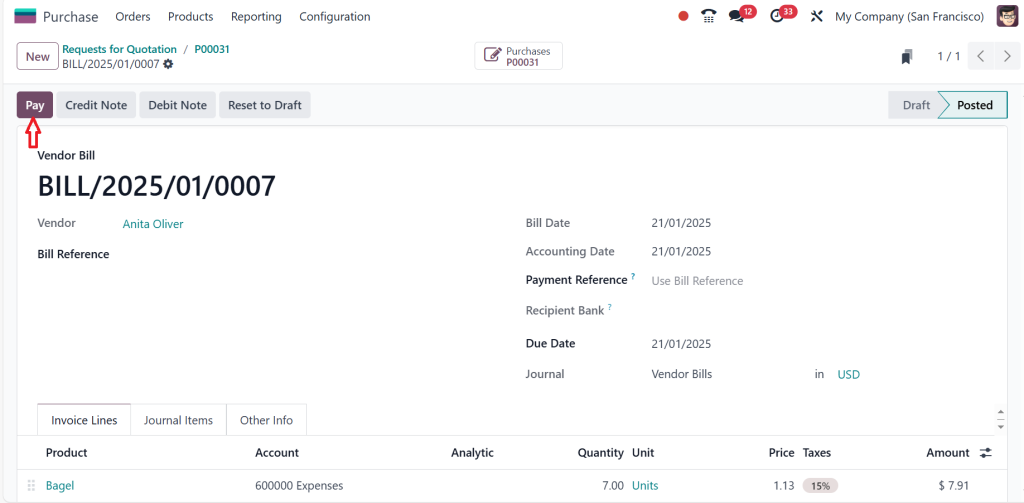
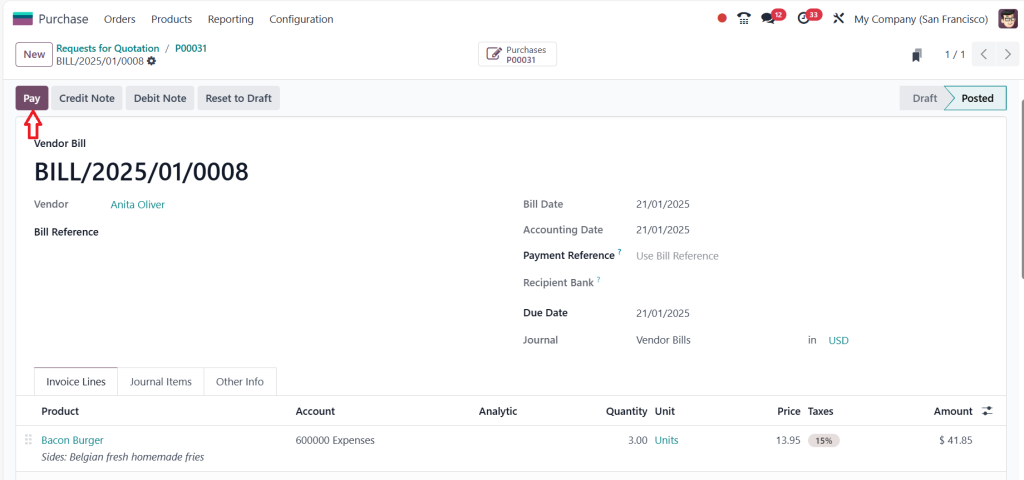
Click on Pay.
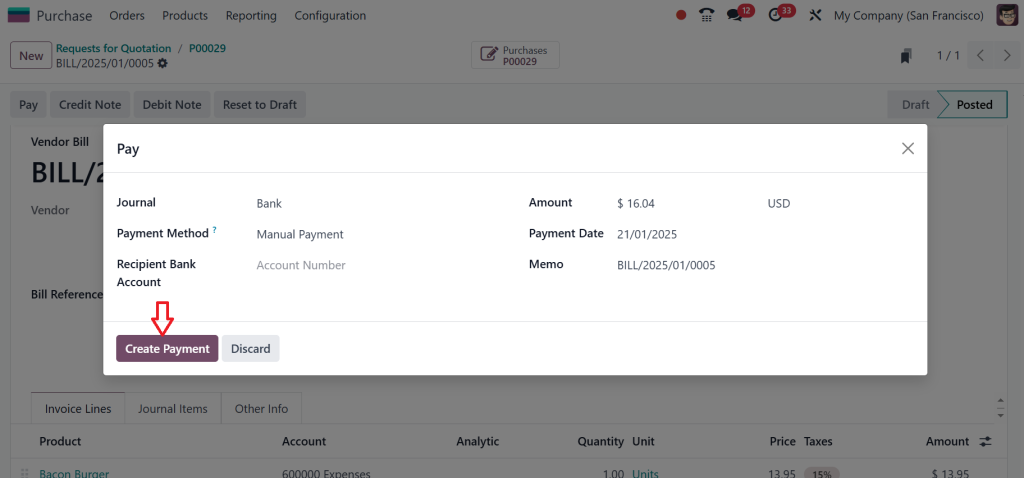
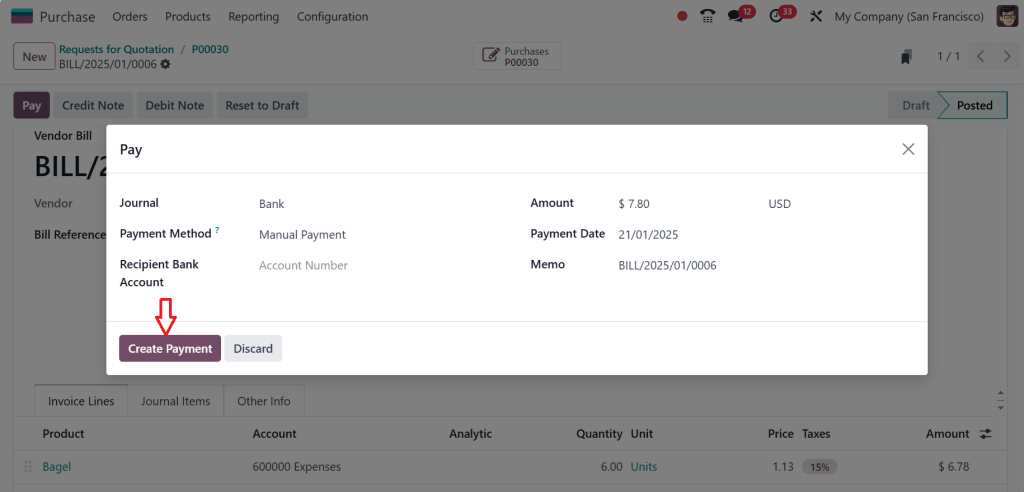
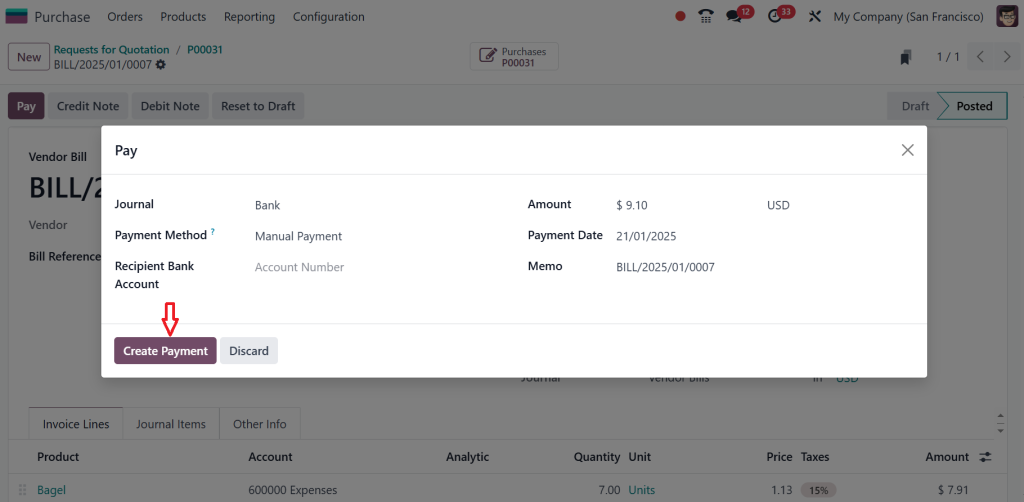
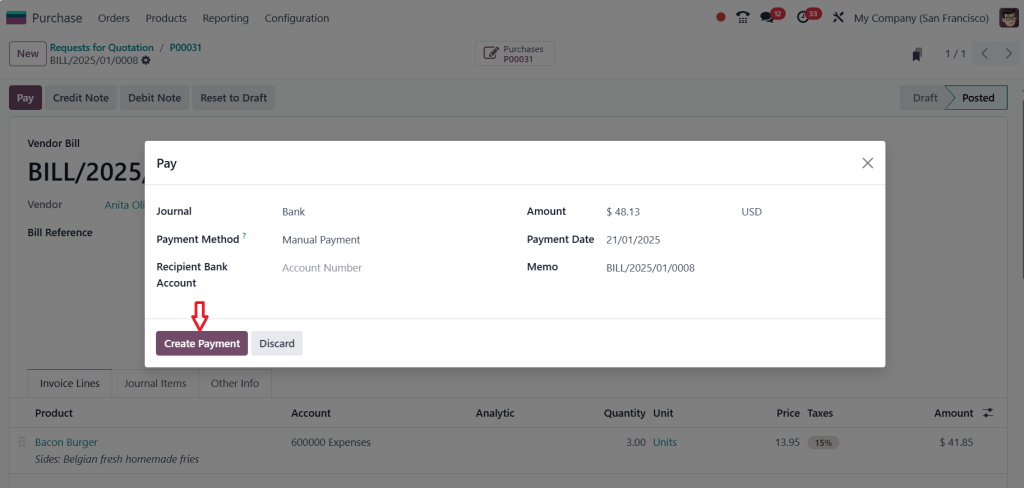
Next, click on the Create Payment.
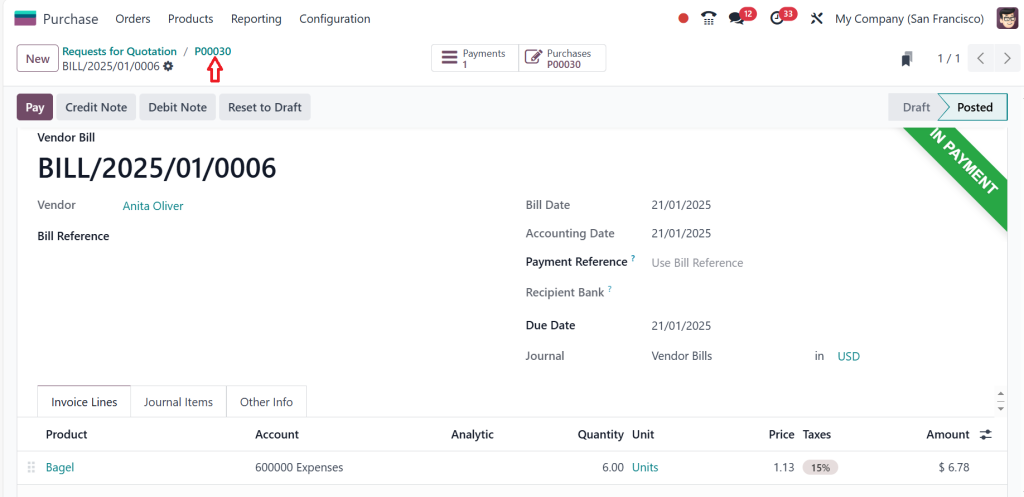
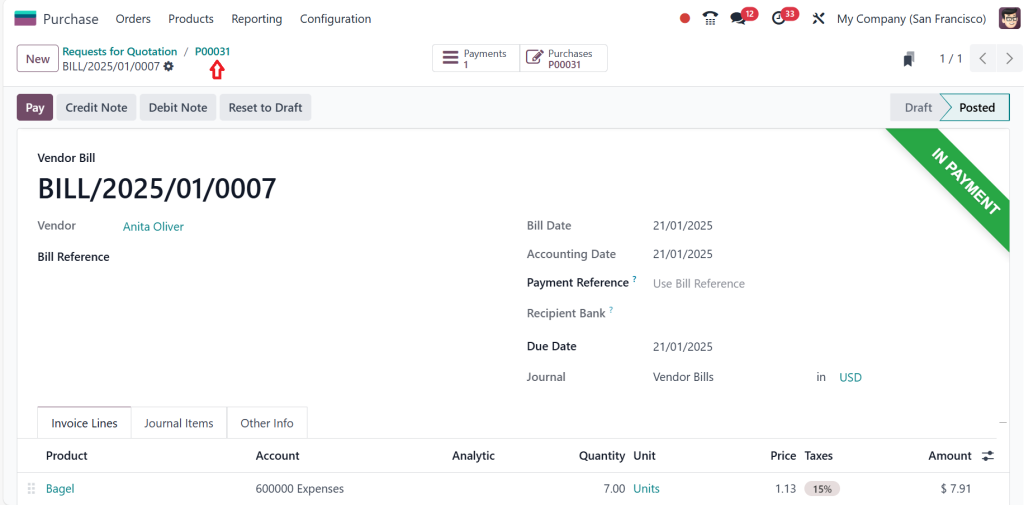
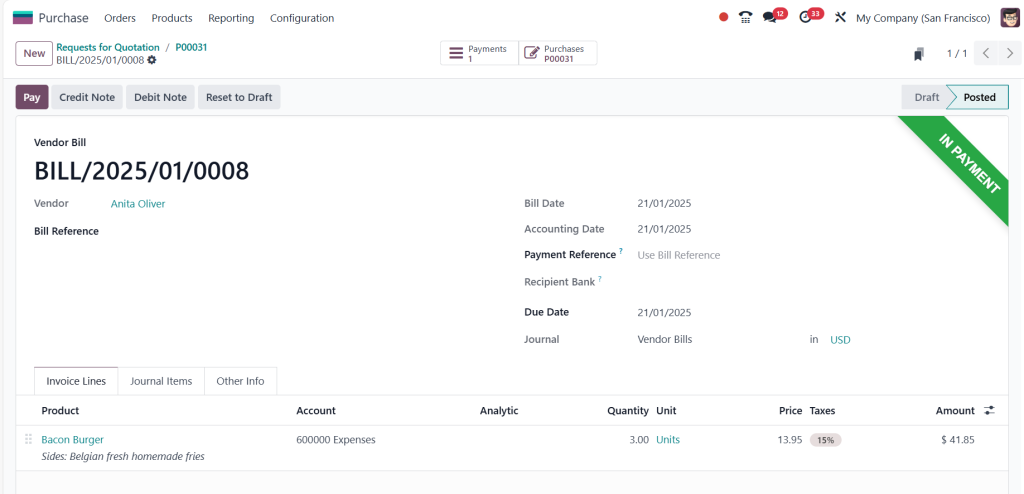
Now, you can see it’s in payment state. That’s how you can create an RFQ (Request for Quotation) for a product with a bill control policy on received quantities.
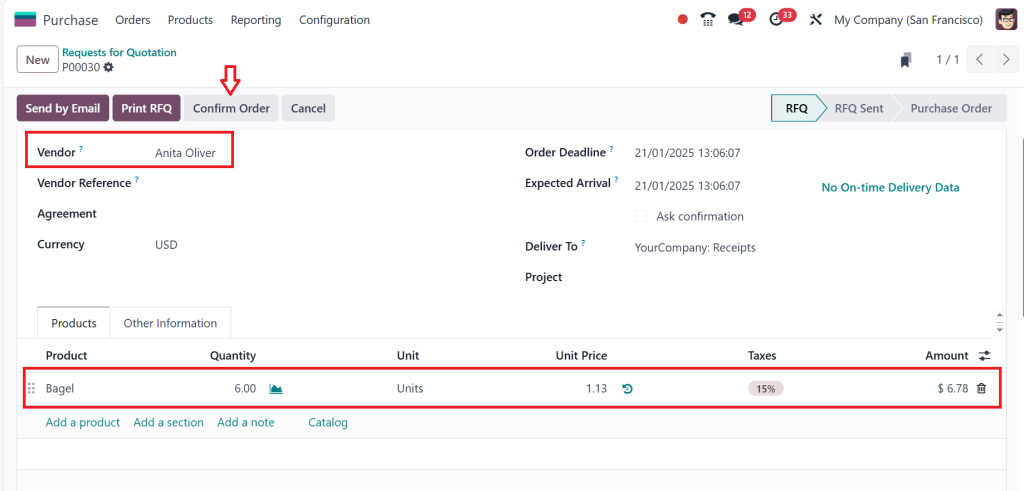
Based on Ordered Quantities
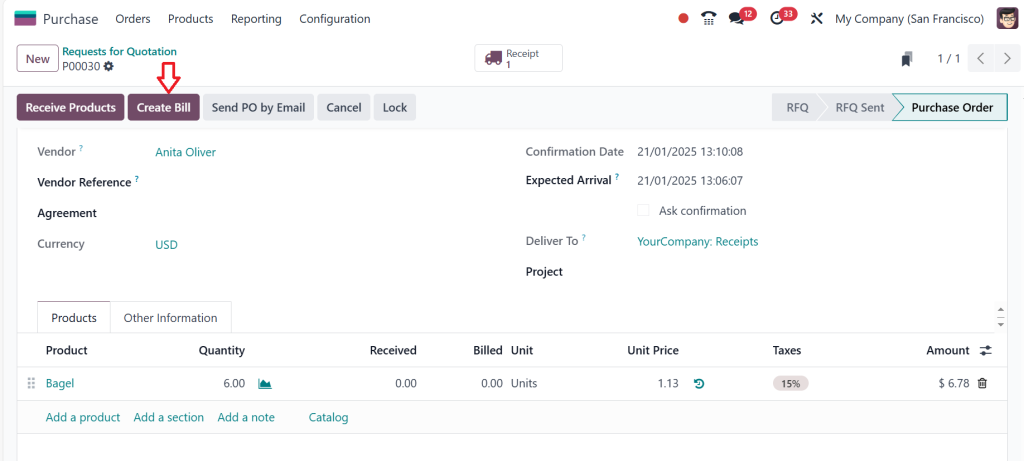
Now, let’s create another one for Received Quantities. Choose the vendor, add the product, and click on Confirm.
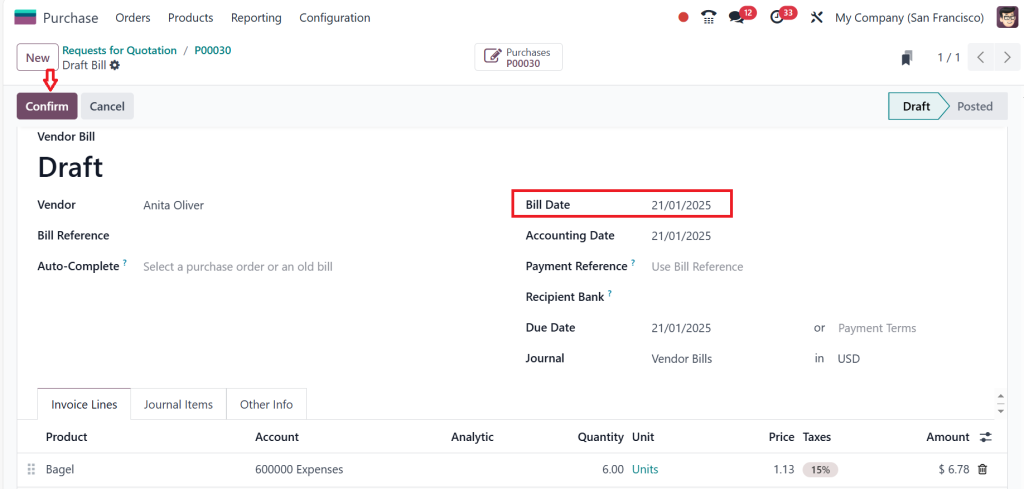
After confirming the order, you can see the Received Products button and Create Bill are active here. In the previous case, the bill creation was not active because you can create the bill only after receiving the products. So, bill creation is possible here; just click on Create Bill.
Add the bill date and click Confirm.
Click on Pay.
Then, Create Payment.
So, it’s possible before receiving the product in ordered quantities control policy.
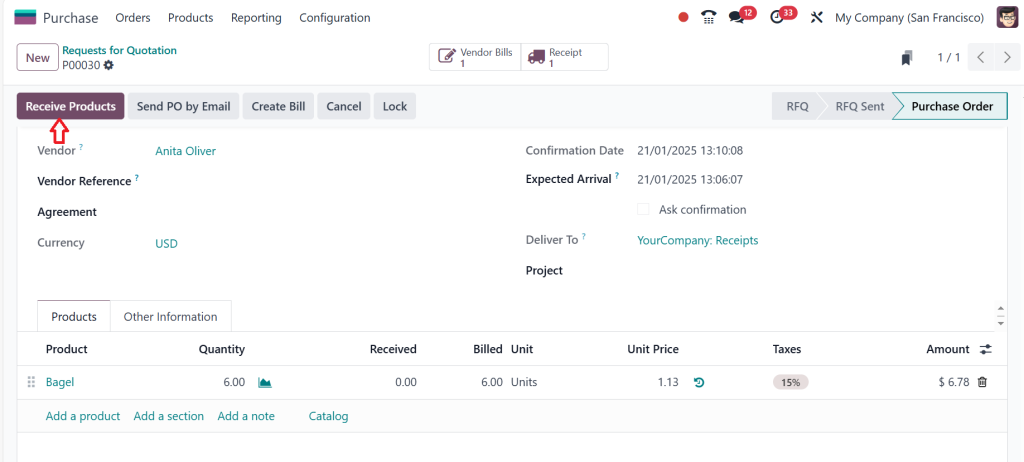
Payment is also made; if you click on return, you can ‘‘Receive the Product’’ and complete the procedure.
Click on Validate. Now, everything is done, so that’s how you deal with two control policies.
What Happened if We Add Two Products in the Same RFQ?
Are you wondering, “What happens if we add two products to the same RFQ?” Let’s create a new RFQ with two products and see what happens.
First, choose the Vendor and add two products, then click on Confirm Order.
Now, you can see that creating a bill is possible; just click ‘‘Create Bill’’.
As shown in the screenshot below, only Bagel is here because Bagel has the control policy, which is ordered quantity. Odoo gives the highest priority to the control policy on ordered quantities. That’s why we are able to create a bill for Bagel and not for Bacon Burger because Bacon Burger is in the control policy for received quantities. Now, click on Confirm after specifying the bill date.
Click on Pay.
And Create Payment.
That’s all about the Bagel because the Bagel has the ordered quantity as a control policy. Let’s go back by clicking on the above purchase order number.
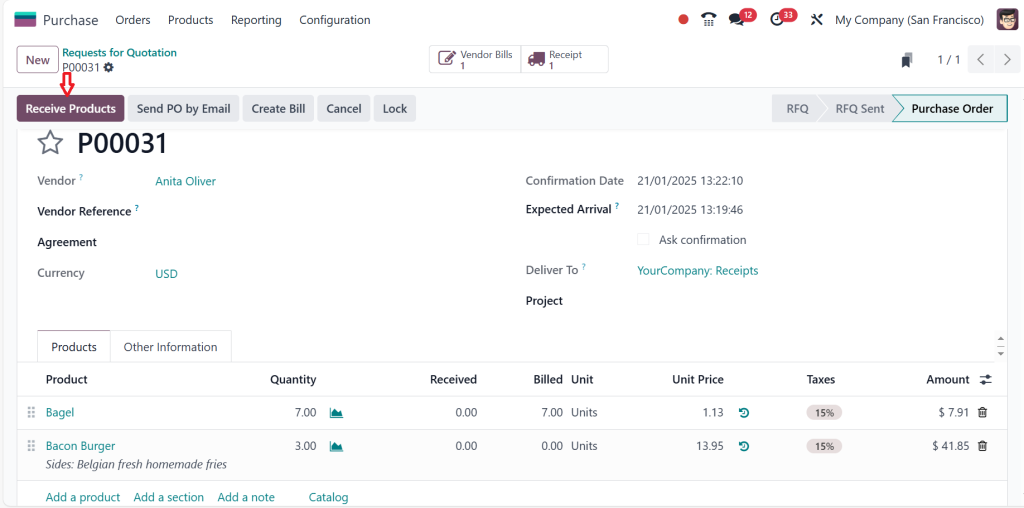
And Receive the Products.
Validate the product.
That’s in the done stage, let’s go back.
So, as you can see in the screenshot below, the Create Bill option is active now; just click on “Create Bill.”
Now, you can see it is a bill for Bacon Burger. Add the bill date and click on Confirm. So, once you receive the product, you are able to create a bill for it with the control policy received quantities.
Click on Pay.
Then, Create Payment.
So, if you check the priority of the control policies, ordered quantities have the highest priority, followed by received quantities, because only after receiving the product can you create the bill.
Basically, that’s how you can deal with the Bill Control Policy. By effectively utilizing the bill control policy in Odoo 18, you can strengthen your financial management and protect your organization’s assets.
Real-Life Applications of Odoo 18 Bill Control Policy
Scenario 1: Based on Ordered Quantities
A wholesale distributor orders bulk goods and needs to pay vendors upon order confirmation. Setting the Odoo 18 bill control policy to “Based on Ordered Quantities” generates the vendor bill immediately, facilitating timely payments.
Scenario 2: Based on Received Quantities
A manufacturing company prefers to verify goods before paying vendors. With “Based on Received Quantities,” the company ensures that bills are generated only for items received, reducing discrepancies and ensuring accountability.
How Odoo 18 Purchase Configuration Enhances Operations
Customization
The Odoo 18 purchase invoicing settings allow businesses to modify their billing workflows to meet specific needs, whether immediate billing or upon receipt.
Workflow Automation
Integrating Odoo 18 vendor bill management with other modules enables automated workflows, reducing manual intervention and errors.
Detailed Reporting
Accurate and timely billing through Odoo 18 purchase order billing provides better financial and procurement performance insights.
Key Features Supporting Bill Control in Odoo 18
Purchase Order Management
Link purchase orders with bills and receipts for a unified procurement process.
Vendor Bill Automation
With Odoo 18 vendor bill management, bill creation can be automated based on predefined policies, saving time and reducing errors.
Inventory Integration
Integrating Odoo 18 ordered vs. received billing with Inventory ensures that stock movements align with financial transactions.
Multi-Currency Support
Handle international purchases effortlessly with multi-currency capabilities in Odoo 18 purchase configuration.
Best Practices for Setting Up Odoo 18 Bill Control Policy
Analyze Business Needs
Decide whether ordered or received quantity-based billing suits your operations better.
Train Your Team
Educate your procurement and accounting teams on Odoo 18 bill control setup nuances to maximize its benefits.
Regularly Audit Configurations
Review your Odoo 18 purchase invoicing settings periodically to ensure they align with your evolving business needs.
Leverage Odoo Integrations
Integrate the Purchase module with Inventory and Accounting for an all-in-one Odoo 18 purchase configuration.
Why Choose Odoo 18 for Vendor Bill Management?
Odoo 18 stands out as a comprehensive ERP solution that rationalises procurement processes. Its robust Bill Control Policy in Odoo 18 Purchase feature ensures accurate vendor billing, flexible invoicing options, and improved financial control. With user-friendly interfaces and advanced integrations, Odoo 18 makes vendor bill management efficient and reliable.
Advance Your Procurement Process with Odoo 18
Setting up the Bill Control Policy in Odoo 18 Purchase is vital in modernizing procurement operations. This feature allows businesses to have flexible billing options, precise vendor bill management, and smooth integration with other Odoo modules.
Whether you choose ordered or received billing, the Odoo 18 bill control policy adapts to your unique business needs, enhancing efficiency and accuracy. With the proper configuration, your procurement and financial workflows will be rationalised, saving time and improving supplier relationships.
Use today’s powerful Odoo 18 purchase configuration to transform your procurement operations. Squeeze the efficiency, flexibility, and control that Odoo 18 offers, and watch your business thrive.
Hi, I'm Ilsa Shabbir, an Odoo ERP content writer specializing in functional blogs on Odoo modules. I simplify complex Odoo features, creating clear and engaging content to help businesses understand and optimize their ERP solutions.
We use cookies to ensure that we give you the best experience on our website. If you continue to use this site we will assume that you are happy with it.